
If you’ve ever built a PC that looked perfect on paper but felt weirdly sluggish in games, you already know the frustration. You upgrade your GPU expecting smooth frames, but something just doesn’t click.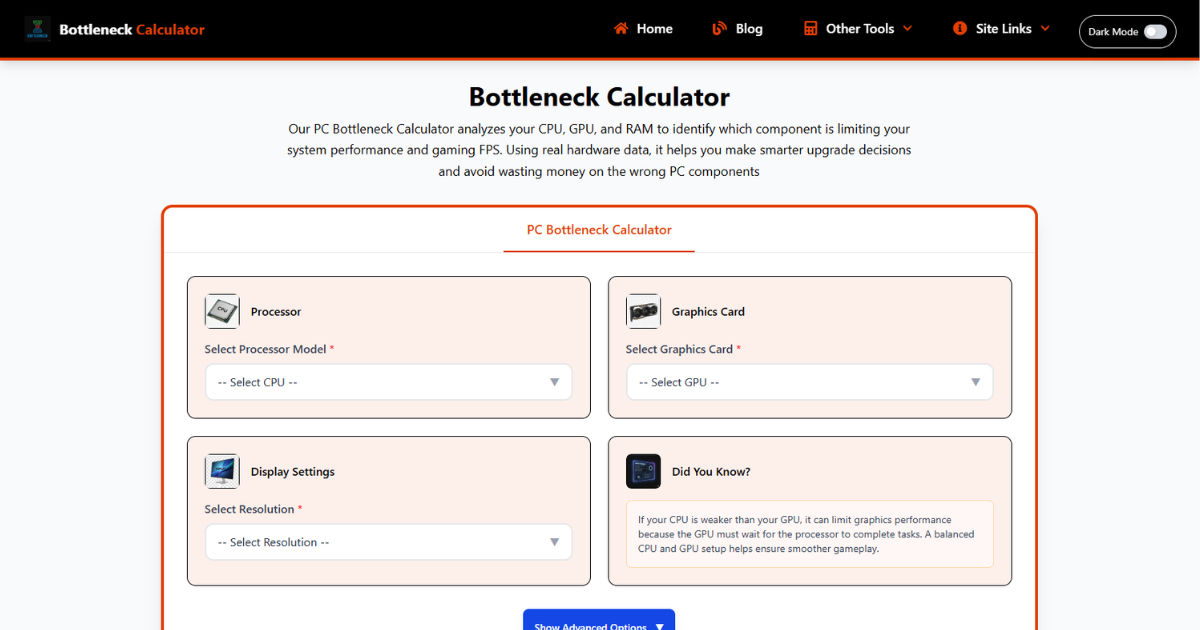
FPS jumps around, stutters show up, and suddenly you’re questioning your whole build.
That’s usually when people turn to bottleneck calc tools. You plug in your CPU and GPU, hit calculate, and it spits out a percentage like it knows your system better than you do.
I’ve used cpu gpu bottleneck calculator tools plenty of times, especially when testing mismatched builds or helping someone troubleshoot performance issues. But here’s the thing. These tools aren’t magic. They’re useful, but only if you understand how they actually work and what they’re really telling you.
What Is a PC Bottleneck?
A bottleneck is just the part of your system that’s holding everything else back. Nothing fancy.
Think of it like pouring water through a funnel. You can have a huge jug of water, but if the funnel opening is tiny, everything slows down at that point. In a PC, your CPU, GPU, RAM, and storage all work together, but they don’t always move at the same speed.
In gaming, the most common example is CPU and GPU imbalance. If your CPU can’t keep up with your GPU, your graphics card ends up waiting around for instructions. That’s a CPU bottleneck. Flip it around, and if your GPU is too weak, your CPU sits idle instead.
In real-world builds, I’ve seen people pair something like an RTX 4070 with an older i5 from years ago and wonder why their performance feels inconsistent. That’s a classic bottleneck scenario.
What Is a Bottleneck Calculator Tool?
A bottleneck calculator is basically a quick estimation tool. You enter your hardware specs, and it tries to predict whether one component will limit another.
People rely on these tools because they’re fast and simple. No need to run benchmarks or dig into technical data. Just input parts and get a number.
But under the hood, it’s not measuring your actual PC. It’s comparing known performance data and making an educated guess. That’s an important distinction.
How Bottleneck Calc PC Tool Detects Performance Limits
Collects Hardware Data
The first step is straightforward. The tool takes your selected components, usually CPU, GPU, sometimes RAM and resolution. Some tools also factor in things like clock speeds or generation.
Behind the scenes, each component is tied to a performance profile. This isn’t your exact system. It’s more like a standardized version of that hardware based on typical benchmarks.
For example, a Ryzen 5 5600 might be represented by its average performance across multiple tests, not how it behaves in your specific setup with your cooling, motherboard, or background apps.
Uses Benchmark Databases
This is where things get interesting. Bottleneck calculators rely heavily on stored benchmark data. That includes synthetic tests and real-world gaming averages.
They don’t run anything on your PC. They pull from pre-existing datasets. These datasets might include average FPS in certain games, CPU single-thread performance, and GPU rendering power.
In my experience, this is both the strength and weakness of these tools. If the data is solid and up to date, results can be reasonably helpful. If it’s outdated or too generalized, the predictions can drift pretty far from reality.
Analyzes CPU vs GPU Balance
This is the core of the calculation. The tool compares how fast your CPU can process game logic against how fast your GPU can render frames.
It’s basically asking one question. Will the CPU be able to feed the GPU fast enough?
If the GPU is significantly stronger, the CPU becomes the limiting factor. If the CPU is stronger, the GPU takes the hit.
I’ve tested builds where a high-end GPU barely improved FPS because the CPU couldn’t keep up. One example was pairing an RTX 3080 with an older i7 7700. On paper, it looked powerful. In practice, the CPU capped performance in many modern games.
Considers Resolution & Use Case
Good tools factor in resolution because it changes everything.
At 1080p, the CPU matters more because the GPU isn’t fully stressed. At 1440p or 4K, the load shifts heavily to the GPU.
So the same CPU and GPU combo can show different bottleneck percentages depending on resolution. This is something a lot of people overlook.
Some tools also try to guess your use case. Gaming, streaming, editing. Each one stresses components differently, though most calculators simplify this part a bit too much.
Calculates Bottleneck Percentage
This is the part everyone focuses on. The percentage.
What the tool is doing here is comparing the relative performance gap between components. If one component consistently underperforms relative to the other in benchmark data, it assigns a percentage to represent that imbalance.
It’s not a real measurement. It’s more like a weighted difference based on expected performance.
So when you see something like 20 percent bottleneck, it doesn’t mean you’re losing exactly 20 percent performance. It means there’s a noticeable mismatch based on their model.
Detects the Limiting Component
Finally, the tool identifies which part is the bottleneck.
Usually, it labels either CPU bottleneck or GPU bottleneck. Some tools go further and explain why, but most just point to the weaker link.
In real testing, this part is often correct in direction but not always in severity. The tool might correctly say your CPU is the limiter, but exaggerate how much it actually impacts gameplay.
Key Factors Bottleneck Calculators Analyze
These tools are mainly looking at relative performance, not absolute performance. That’s an important distinction.
They compare CPU single-core and multi-core scores because games rely heavily on single-thread performance, especially for physics and AI. GPU power is measured through rendering benchmarks, shader performance, and memory bandwidth.
Resolution plays a big role. Lower resolutions shift the load toward the CPU. Higher resolutions push the GPU harder. Good calculators adjust their predictions based on this.
RAM is sometimes included, but often oversimplified. Speed and latency matter in real systems, but many tools treat RAM as a checkbox rather than a real performance factor.
Another thing they try to account for is game behavior. Some games are CPU-heavy, others are GPU-heavy. Most calculators average this out, which is why their results feel generic.
From hands-on testing, I’ve noticed that calculators tend to assume ideal conditions. Clean OS, no background load, and perfect optimization. Real systems rarely behave that way.
How to Read Bottleneck Results
The biggest mistake people make is taking the percentage too literally.
If a tool says 15 percent bottleneck, don’t panic. That doesn’t mean your system is broken. It just means one component is slightly ahead of the other.
What matters more is how your system actually feels. Are you getting stable FPS? Are there stutters? Is GPU usage low while CPU usage is maxed out?
I usually treat these results as a hint, not a verdict. If the tool says CPU bottleneck and you’re seeing 100 percent CPU usage in games, then it’s probably onto something.
But if your performance is smooth, the number doesn’t really matter.
How Accurate Are Bottleneck Calculators?
They’re decent for rough planning. Not great for precision.
In my experience, they’re most useful when you’re pairing very mismatched components. Like a high-end GPU with a very old CPU. In those cases, the tool will correctly flag a problem.
But for mid-range builds or balanced systems, accuracy drops. Real-world performance depends on game optimization, drivers, background processes, and even cooling.
So think of them as a starting point, not a final answer.
Limitations of Bottleneck Calculator Tools
The biggest limitation is that they don’t see your actual system. They rely on averages.
They can’t account for overclocking, thermal throttling, or software issues. They also can’t predict how a specific game behaves.
Another issue is oversimplification. Real performance is dynamic. Your system can be CPU-bound in one scene and GPU-bound in another.
Most calculators flatten everything into a single number, which makes things easier to understand but less accurate.
Signs Your PC Has a Bottleneck
In real usage, bottlenecks show up in patterns.
You might notice your GPU usage sitting at 60 percent while your CPU is maxed out. That’s a strong sign of a CPU bottleneck.
Or the opposite. Your CPU is chilling, but your GPU is at 100 percent and FPS won’t go higher. That’s a GPU limit.
Stutters are another clue. Especially in open-world games where the CPU has to handle lots of background tasks.
I’ve seen systems where upgrading the GPU did almost nothing because the CPU was already struggling. The user thought the GPU was faulty, but it was just being held back.
How to Fix Performance Bottlenecks
Fixing a bottleneck isn’t always about upgrading. Sometimes it’s about balance.
If your CPU is the issue, lowering CPU-heavy settings like draw distance or NPC density can help. If your GPU is struggling, reducing resolution or graphics settings makes a bigger difference.
Upgrading is the obvious solution, but it needs to be targeted. Don’t just buy the most powerful part you can afford. Match your components.
For example, pairing a mid-range CPU like a Ryzen 5 5600 with a GPU like RTX 3060 or 4060 usually works well. Jumping to a much stronger GPU without upgrading the CPU can create imbalance.
Also, don’t ignore things like RAM speed and cooling. I’ve seen systems improve noticeably just by fixing thermal throttling.
Conclusion
Bottleneck calculator tools are helpful, but only if you understand what they’re actually doing. They compare hardware based on stored data and try to predict imbalance. That’s useful for planning builds or spotting obvious mismatches, but it’s not a real-time diagnosis of your PC.
In practice, your system’s behavior matters more than any percentage. Watch your usage stats, test your games, and trust what you see on screen. A balanced build isn’t about chasing zero percent bottleneck. It’s about making sure your components work together without one constantly holding the others back.
Once you start looking at performance this way, those calculator numbers become a guide instead of a source of confusion.
